
Support
Contact the RivetChain team from the dashboard, the Shopify app or by email, and follow your requests.
Overview
If you run into an issue or have a question that is not covered in the Help Center, the RivetChain support team is here to help. You can create support tickets from the dashboard, from the RivetChain app in your Shopify admin, or by email, and follow the conversation until your issue is resolved.
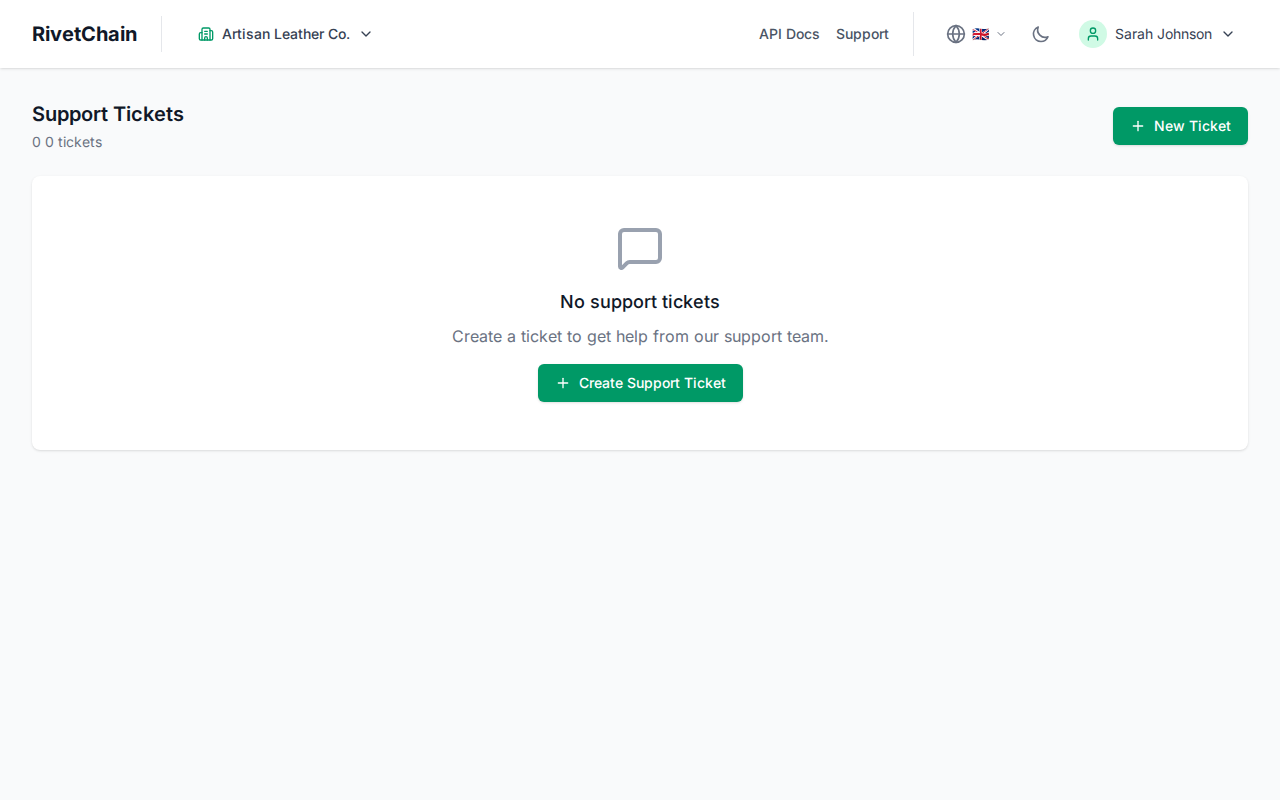
Creating a Support Ticket
When you need assistance, creating a ticket is the fastest way to reach the support team. Our team is notified as soon as you submit it and usually replies within one business day.
- 1
Open the Support page
Click "Support" in the top navigation of the dashboard to open the Support page. You will see a list of your existing tickets and a button to create a new one.
- 2
Click "New Ticket"
Click the New Ticket button to open the ticket form. Choose a ticket type (Bug Report, Feature Request, Account Issue, Billing or Other), enter a clear subject line that summarizes your issue, and provide as much detail as possible in the description field.
- 3
Submit your ticket
Review your message and click "Submit Ticket". Your ticket appears at the top of your ticket list with the status Open, and the support team is notified immediately.
Viewing Your Tickets
The Support page lists all your tickets, newest first, each with its status: Open, In Progress, Awaiting your reply, Resolved or Closed. You can revisit any ticket at any time for reference.
Click on any ticket to view the full conversation thread. Each message shows the sender, timestamp, and content. You can scroll through the entire history to review previous exchanges.
Replying to Conversations
When the support team responds to your ticket, you will receive an email notification. You can reply directly from the Support page by opening the ticket and typing your response in the reply field at the bottom of the conversation. Click Send to add your message to the thread.
Replying to a resolved ticket reopens it. If a ticket is closed and the issue comes back, create a new ticket (mention the old one) or reply to our last email about it.
Other Ways to Reach Us
- From the Shopify app: in the RivetChain app in your Shopify admin, open the Help tab to search help articles, send a request and see our replies under "My requests". Shopify's own "Get support" button for the app opens the same form.
- By email: write to contact@rivetchain.com. Your email becomes a support ticket; reply to our answer to continue the conversation.